How to make a WhatsApp link and QR code for your business
Written by Yogesh, Founder of Linkerzz
· · 2 min read
 whatsapp
The short answer
A WhatsApp link is wa.me/ followed by your number in full international form, with no plus sign, spaces or dashes. Add a first message if you like, then turn the link into a QR code.
Linkerzz makes a link-in-bio page builder and is not affiliated with Instagram, TikTok or any other app named here.
On this page
A WhatsApp link is a normal web address that opens a chat with your number. Customers do not have to save your number, copy it or type it. They tap, and the chat is open. That makes it one of the easiest ways for a small business to get messages.
What the link looks like
The format is simple:
https://wa.me/14155552671After wa.me/ comes your number in full international form: the country code, then the number, with no plus sign, spaces or dashes. A US number written as +1 (415) 555-2671 becomes 14155552671.
Add a first message
You can also pre-fill what the customer is about to send, by adding ?text= and the message at the end. Spaces and symbols have to be encoded, which is where people make mistakes:
https://wa.me/14155552671?text=Hi%2C%20I%20would%20like%20to%20book%20a%20sessionThe person still presses send, so the message is a starting point, not an automatic one. Making it specific helps: “Hi, I would like to book a session” tells you more than “Hi”.
The quick way
You do not need to build this by hand. Our free WhatsApp link generator takes your number and an optional message, fixes the formatting and gives you the link and a QR code. Nothing you type leaves your browser.
Turn it into a QR code
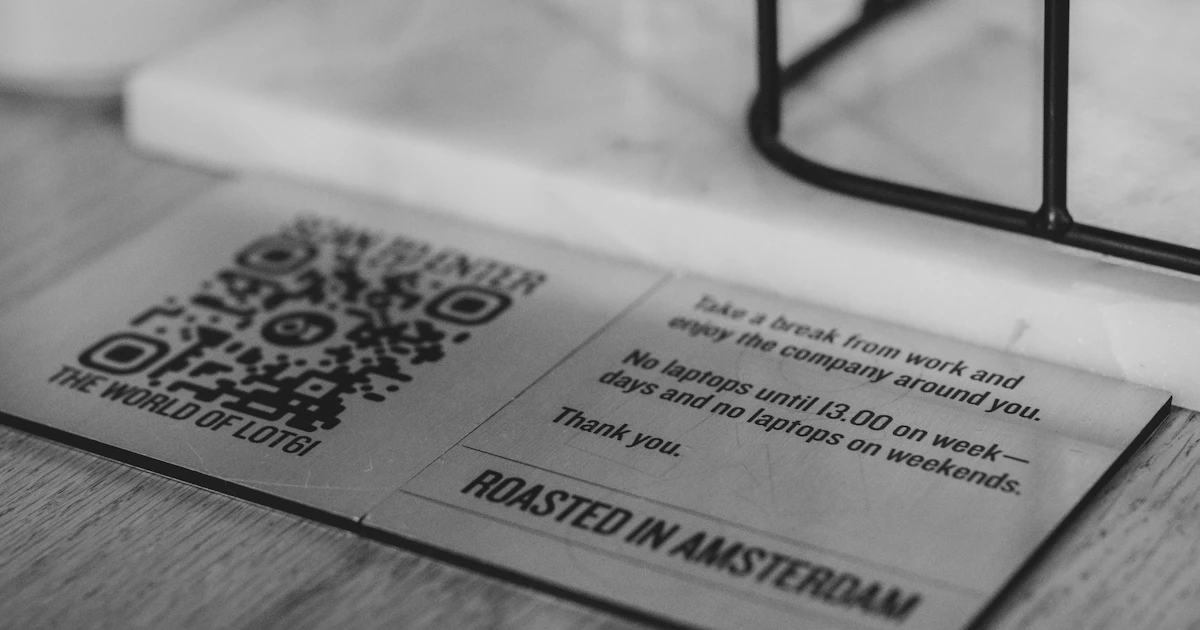
A QR code lets people open the chat with their phone camera, which is ideal for anything printed or shown on a screen. The generator above makes one for you, or you can paste your link into the QR code generator to choose a colour and download a PNG or SVG.
Before you print, check three things:
- Scan it yourself with two different phones.
- Keep a white border around the code and do not crop it.
- Print it big enough, at least about 2 cm (0.8 inch) wide, and larger if people scan from a distance.
Where to put it
- Your Instagram and TikTok bios. Add it as a button on a link-in-bio page, next to your other links.
- Your shop window, menu or counter. Put the QR code where customers already wait.
- Flyers, business cards and invoices.
- Your email signature and Google Business profile.
If you run different services, make one link per service with a different first message. When a message arrives, you know straight away what the person wants.
When something goes wrong
If WhatsApp says the number is not on WhatsApp, the most common cause is a wrong country code or a leading zero left in. Check that the number works by opening the link on your own phone before you share it.
Put it on a page with everything else
A WhatsApp link is most useful next to your other links. A Linkerzz page has a WhatsApp button block, a contact form that lands in your inbox, and your links, all behind one address you can turn into a QR code. It is free to start.
Frequently asked questions
Do customers need to save my number first?
No. They tap the link and the chat opens, with no need to save or type your number.
What if WhatsApp says the number is not on WhatsApp?
The most common cause is a wrong country code or a leading zero left in. Open the link on your own phone to check it before you share it.